Docker Deployment
Docker provides a straightforward way to deploy all four services of the pgEdge AI DBA Workbench using pre-built container images for production or built from source for development.
Prerequisites
Install the following software before continuing.
- Docker Engine version 24.0 or later is required.
- The Docker Compose v2 plugin must be available as a Docker CLI plugin.
- Git is required to clone the repository in the installation steps.
- OpenSSL is required to generate the shared secret file; OpenSSL is pre-installed on most Linux and macOS systems.
Access to the GitHub Container Registry is required for pulling pre-built production images.
Installing Workbench with Docker
The quickest way to deploy uses pre-built images from the GitHub Container Registry.
Add TLS before exposing the deployment
The default Compose configuration publishes the client container on plain
HTTP at http://localhost:3000 for first-run convenience. Any deployment
reachable from a network other than the host loopback must terminate TLS in
front of the client container. Place an external reverse proxy (or TLS
sidecar) in front of the published port, configure HTTP-to-HTTPS
redirection and HSTS on the proxy, and restrict the published port to the
proxy. See the
TLS and reverse proxy requirements
for the full operator checklist.
- Clone the repository to obtain the configuration files.
In the following example, the git clone command retrieves the project
repository; the cd command then enters the project directory.
```bash
git clone \
  https://github.com/pgEdge/ai-dba-workbench.git
cd ai-dba-workbench
```
- Generate the required secret files for the server and the database.
In the following example, the openssl command creates a random secret key and
writes the PostgreSQL password to a secret file.
```bash
mkdir -p docker/secret
openssl rand -base64 32 > docker/secret/ai-dba.secret
echo '1safePassword!' > docker/secret/pg-password
```
- Set the database password in the
POSTGRES_PASSWORDenvironment variable.
In the following example, the export command sets the database password used
by the Workbench.
```bash
export POSTGRES_PASSWORD=1safePassword!
```
- Update the password in the
ai-dba-server.yamlconfiguration file to match the PostgreSQL password set in the previous step.
In the following example, the sed command replaces the default password value
in the server configuration file.
```bash
sed -i 's/password: postgres/password: 1safePassword!/' \
  docker/config/ai-dba-server.yaml
```
- Start all of the services using the production Compose file.
In the following example, the docker compose command starts the services in
detached mode.
```bash
docker compose \
  -f examples/docker-compose.production.yml up -d
```
The output from a healthy cluster resembles the following.
```text
[+] up 8/8
✔ Network examples_ai-dba-network Created 0.0s ✔ Volume examples_pgdata Created 0.0s ✔ Volume examples_server-data Created 0.0s ✔ Container examples-postgres-1 Healthy 5.7s ✔ Container examples-alerter-1 Started 5.8s ✔ Container examples-collector-1 Started 5.8s ✔ Container examples-server-1 Healthy 11.3s ✔ Container examples-client-1 Started 11.3s ```
-
Verify that all services are running. The following
pssubcommand lists running containers and their status.docker compose \ -f examples/docker-compose.production.yml ps
The output from a healthy cluster resembles the following.
```text
NAME IMAGE COMMAND SERVICE CREATED STATUS PORTS
examples-alerter-1 ghcr.io/pgedge/ai-dba-alerter:latest "/usr/local/bin/ai-d…" alerter 13 minutes ago Up 13 minutes
examples-client-1 ghcr.io/pgedge/ai-dba-client:latest "/docker-entrypoint.…" client 13 minutes ago Up 3 minutes (unhealthy) 0.0.0.0:3000->8080/tcp, [::]:3000->8080/tcp
examples-collector-1 ghcr.io/pgedge/ai-dba-collector:latest "/usr/local/bin/ai-d…" collector 13 minutes ago Up 13 minutes
examples-postgres-1 ghcr.io/pgedge/pgedge-postgres:18-spock5-standard "/usr/local/bin/dock…" postgres 13 minutes ago Up 13 minutes (healthy) 0.0.0.0:5432->5432/tcp, [::]:5432->5432/tcp
examples-server-1 ghcr.io/pgedge/ai-dba-server:latest "/usr/local/bin/ai-d…" server 13 minutes ago Up 10 minutes (healthy) 0.0.0.0:8080->8080/tcp, [::]:8080->8080/tcp
```
- Create a user account for the Workbench. The password must be at least 12 characters long.
In the following example, the exec subcommand creates a user named admin
inside the server container.
```bash
echo '1safePassword!' > /tmp/pw.txt
docker compose \
-f examples/docker-compose.production.yml exec \
-T server sh -c 'cat > /tmp/pw.txt' < /tmp/pw.txt
docker compose \
-f examples/docker-compose.production.yml exec \
server /usr/local/bin/ai-dba-server \
-config /etc/pgedge/ai-dba-server.yaml \
-add-user -username admin \
-password-file /tmp/pw.txt \
-full-name "Admin User" \
-email "admin@example.com"
docker compose \
-f examples/docker-compose.production.yml exec \
server /usr/local/bin/ai-dba-server \
-config /etc/pgedge/ai-dba-server.yaml \
-set-superuser -username admin
docker compose \
-f examples/docker-compose.production.yml exec \
server rm /tmp/pw.txt
rm /tmp/pw.txt
```
The server prompts for optional notes and then confirms the user creation. The confirmation output resembles the following.
```text
Auth store: /data/auth.db
Enter notes for this user (optional):
======================================================================
User created successfully!
======================================================================
Username: admin
Full Name: Admin User
Email: admin@example.com
Status: Enabled
======================================================================
```
- Open a browser and navigate to
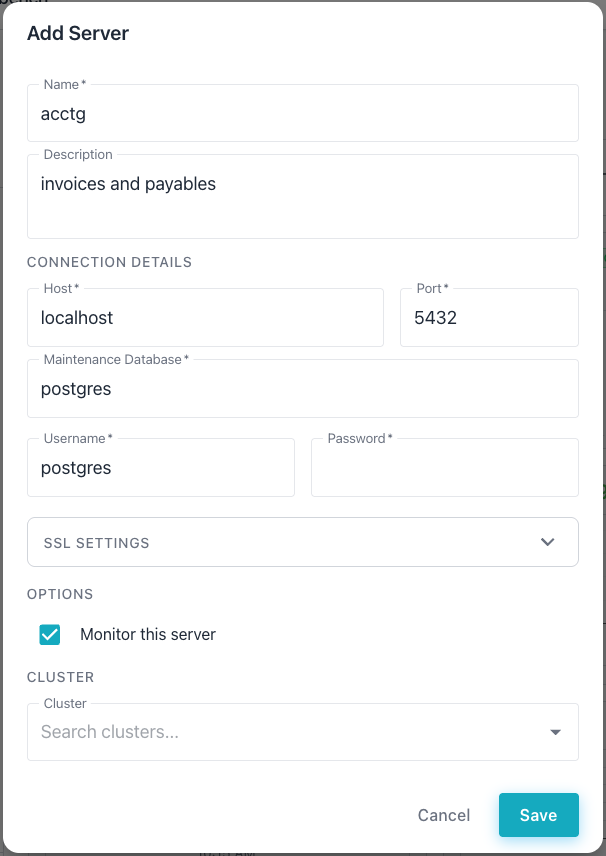
http://localhost:3000to access the web client. Select the+icon to the right of the DATABASE SERVERS label; then add the connection details for the PostgreSQL database you wish to monitor.
Docker Image Variants
Pre-built images are published to the GitHub Container Registry for each
release and for each push to the main branch. The following table lists the
available images and their tags.
| Image | Tags | Description |
|---|---|---|
ghcr.io/pgedge/ai-dba-server |
latest, x.y.z, x.y, edge |
The MCP server component. |
ghcr.io/pgedge/ai-dba-collector |
latest, x.y.z, x.y, edge |
The metrics collector. |
ghcr.io/pgedge/ai-dba-alerter |
latest, x.y.z, x.y, edge |
The alert monitoring service. |
ghcr.io/pgedge/ai-dba-client |
latest, x.y.z, x.y, edge |
The React web client. |
Each image also receives a sha-<hash> tag that provides an immutable
reference to a specific commit. The publishing workflow produces the following
tag types:
- The
latesttag points to the most recent stable release; the registry updates this tag only on version tag pushes. - The
edgetag tracks themainbranch and may contain unstable changes. - The
x.ytag pins to a minor version and receives automatic patch updates. - The
x.y.ztag pins to an exact release and never changes.
Select a tag by setting the VERSION environment variable before running
docker compose.
In the following example, the VERSION variable pins the deployment to an
exact release.
VERSION=1.2.3 docker compose \
-f examples/docker-compose.production.yml up -d
In the following example, the VERSION variable pins to a minor version and
receives automatic patch updates.
VERSION=1.2 docker compose \
-f examples/docker-compose.production.yml up -d
In the following example, the VERSION variable selects the latest main-branch
build.
VERSION=edge docker compose \
-f examples/docker-compose.production.yml up -d
Configuration
The docker/config/ directory contains configuration files for each service.
- The
ai-dba-server.yamlfile configures the MCP server; see Server Configuration for details. - The
ai-dba-collector.yamlfile configures the metrics collector; see Collector Configuration for details. - The
ai-dba-alerter.yamlfile configures the alert monitoring service; see Configuring the Alerter for details. - The
nginx.conffile configures the reverse proxy for the web client.
The production Compose file mounts these configuration files into the
containers at runtime. The files in docker/config/ can be edited to customize
the deployment.
The Compose files support the following environment variables.
| Variable | Required | Default | Description |
|---|---|---|---|
POSTGRES_PASSWORD |
Yes | None | The password for the PostgreSQL database. |
POSTGRES_PORT |
No | 5432 |
The host port mapped to PostgreSQL. |
SERVER_PORT |
No | 8080 |
The host port mapped to the server. |
CLIENT_PORT |
No | 3000 |
The host port mapped to the web client. |
VERSION |
No | latest |
The image tag to pull from the registry. |
Development Deployment
The root docker-compose.yml file builds all images from source and is suited
for local development and testing.
In the following example, the docker compose command builds and starts all
services from source.
docker compose up -d
The command builds each Dockerfile in the project and starts the containers. Changes to the source code require a rebuild of the affected images.
In the following example, the --build flag forces a rebuild of all images.
docker compose up -d --build
Health Checks
The postgres, server, and client services include health checks that
Docker monitors automatically. The following commands verify the deployment
status.
The ps subcommand displays the health status of each container:
docker compose \
  -f examples/docker-compose.production.yml ps
The server exposes a health endpoint for external monitoring. In the following
example, the curl command checks the server health:
curl http://localhost:8080/health
Streaming the logs of a specific service helps diagnose issues. Use the logs
subcommand to stream the server output:
docker compose \
  -f examples/docker-compose.production.yml \
  logs -f server
Troubleshooting Docker Deployments
This section covers common deployment issues and their solutions.
PostgreSQL Fails to Start
The PostgreSQL container may fail to start if the data directory has incorrect permissions; the container logs contain error details.
In the following example, the logs subcommand displays the PostgreSQL
container output.
docker compose \
  -f examples/docker-compose.production.yml \
  logs postgres
The POSTGRES_PASSWORD environment variable must be set before starting the
services. The PostgreSQL container requires this variable on first
initialization.
Port Already in Use
The PostgreSQL container binds to port 5432 on the host by default. The container fails to start if another service already occupies that port; the error message includes the text "port is already allocated."
Setting the POSTGRES_PORT environment variable selects a different host port.
In the following example, the datastore binds to port 5433.
export POSTGRES_PORT=5433
docker compose \
  -f examples/docker-compose.production.yml up -d
The container port inside Docker remains 5432; only the host-side mapping changes. The collector, server, and alerter services connect to the container by service name, so they are unaffected by this change.
Server Cannot Connect to the Database
The server may fail to connect if the database has not finished initializing. The server container depends on the PostgreSQL health check, but network issues can still cause connection delays.
In the following example, the restart subcommand restarts the server
container.
docker compose \
  -f examples/docker-compose.production.yml \
  restart server
The database credentials in the server configuration must match the PostgreSQL
password. The docker/config/ai-dba-server.yaml file and the
docker/secret/pg-password file must contain consistent values.
Viewing Logs for All Services
Viewing logs for all services simultaneously helps identify the source of a problem.
In the following example, the logs subcommand streams output from all
containers.
docker compose \
  -f examples/docker-compose.production.yml \
  logs -f